Welcome to parkm8.com. This guide covers the current platform end-to-end so your team can
onboard quickly and run day-to-day
operations with less admin overhead.
Recommended path: complete account setup, add properties and bays, add customers and rental
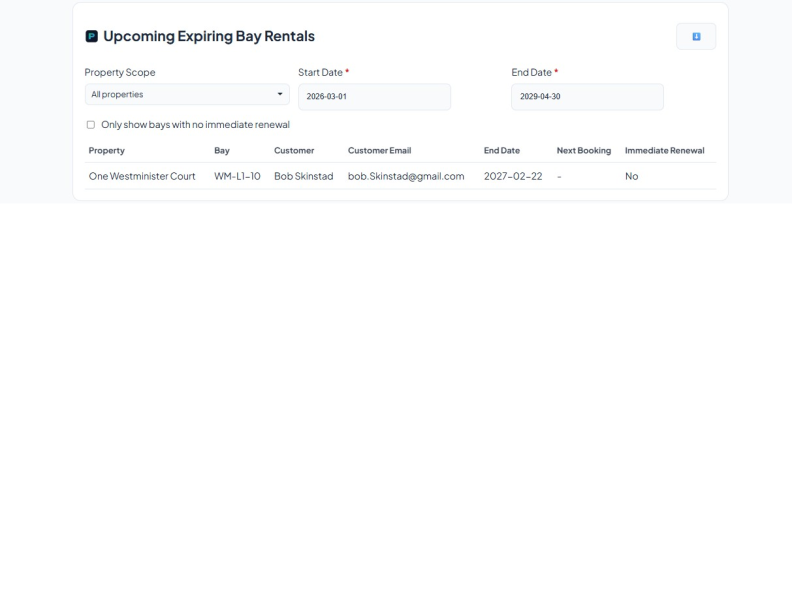
periods, monitor expiring rentals,
then configure billing and notifications so renewals and reporting stay on track.
Getting Started
Start in My Profile and complete your business profile so invoices, communications, and
reports are accurate from day one.
Open My Profile from the top bar.
Review company identity, billing contact email, and address fields.
Set currency and timezone so totals and date logic match your region.
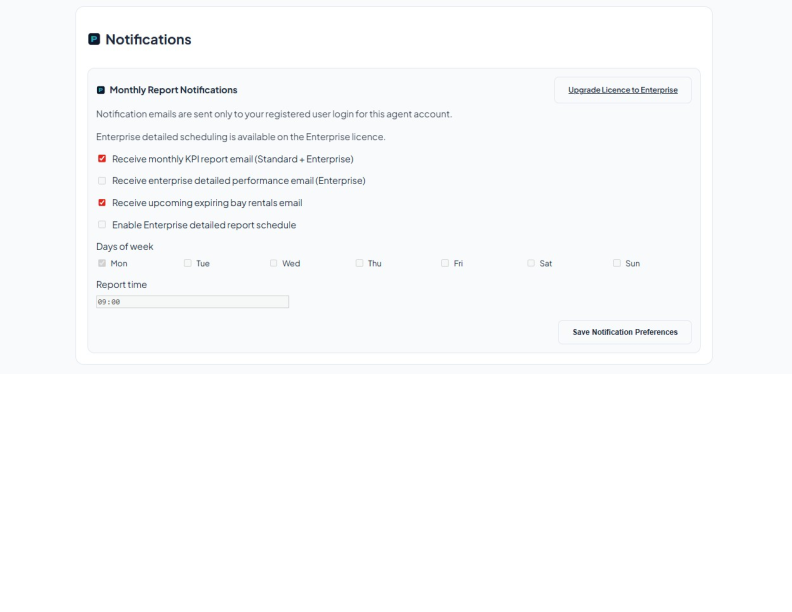
Review notification preferences for monthly KPI, enterprise reports, and expiring-rental
alerts.
Save changes before moving to property setup.
My Profile and notification preferences
Using Parker AI
Parker AI helps with quick operational queries, summaries, and guided actions using only
your company-scoped ParkM8 data.
Open any page with the Parker assistant/chat control.
Ask clear, specific questions such as:
"How many bays are occupied today?"
"Show upcoming expiring rentals this month and next month."
"How many bays are left on my tier?"
Use Parker for supported actions like listing properties/bays/customers, rental checks,
and guided updates.
For export requests, ask explicitly (for example: "Export customers to CSV").
Review AI output before making billing, legal, or customer-impacting decisions.
Important: Parker responses are assistive. You remain responsible for
final verification before communicating or committing critical changes.
Properties, Bays & Quick Rent
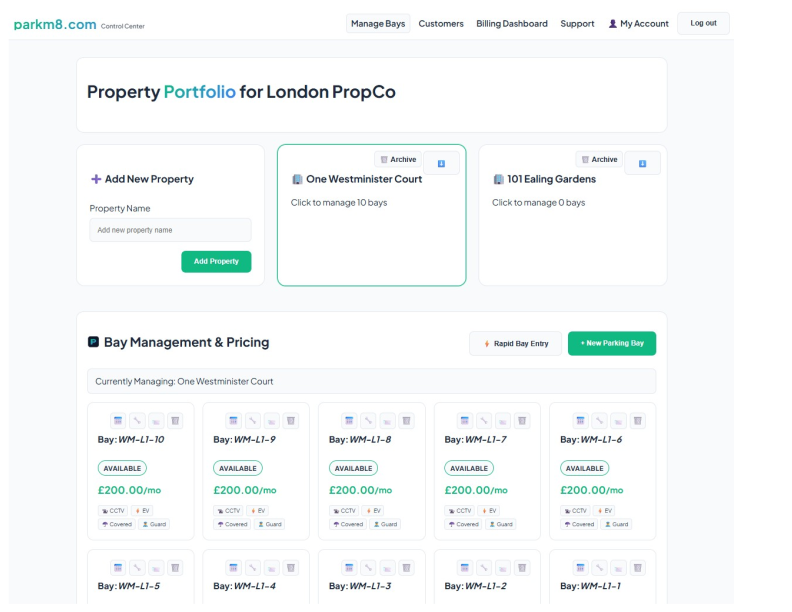
Use Manage Bays for location setup, bay inventory, and fast occupancy workflows.
Add each property/location your business manages.
Select a property card to make it active.
Add bays with clear bay numbers, monthly pricing, and feature flags (CCTV, EV, security,
covered, etc.).
Use rapid/bulk bay entry to create sequential bay numbers quickly.
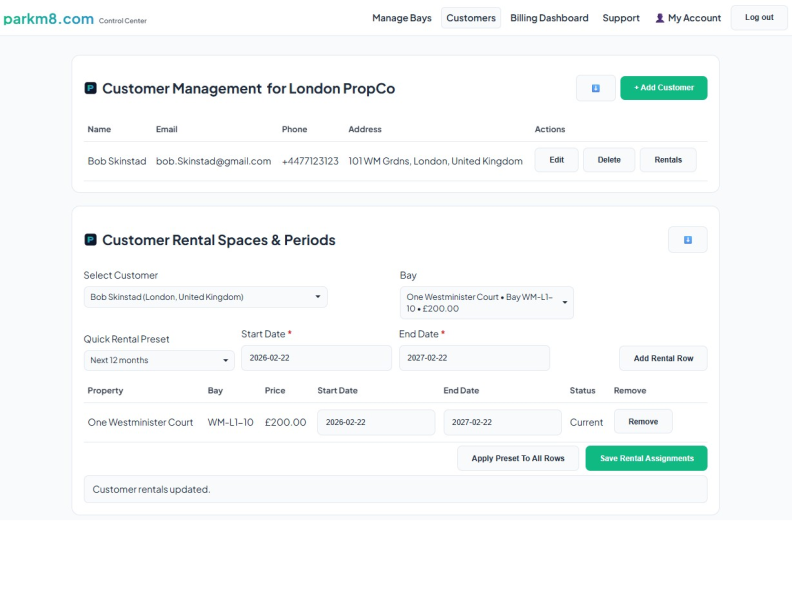
Use Quick Rent from the bay list to assign a customer to a bay with dates in one flow.
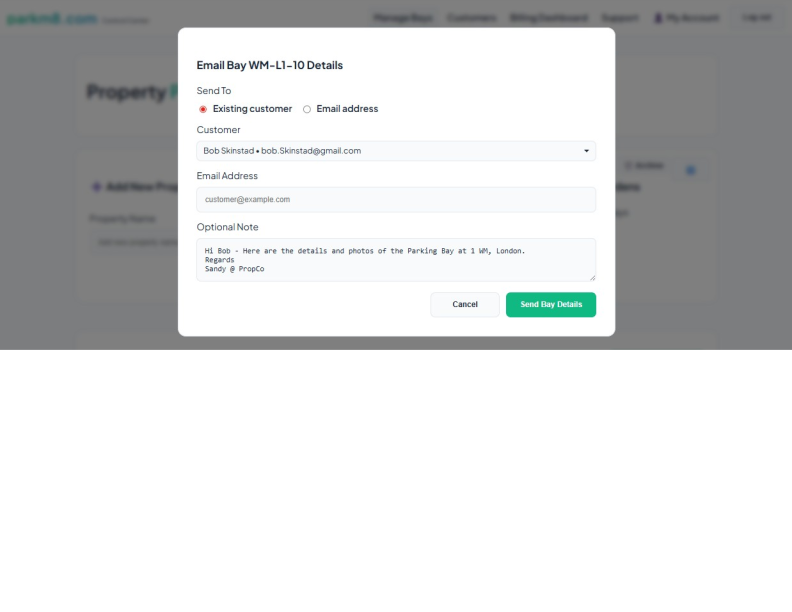
Use Email Bay Details to send bay information directly to a selected customer or typed
email address.
Attach and manage bay images so visual details are available during customer
communication.
Manage Bays dashboard overviewEmail Bay Details modal and recipient modes
Bay View Mode & Bulk Edit
In Manage Bays, you can switch between Card view and Bulk edit
mode to work faster on large bay sets.
Select a property first.
Use search and feature filters to narrow down bays.
Requires approved template sending via Cloud API. Configure:
WHATSAPP_PHONE_NUMBER_ID, WHATSAPP_ACCESS_TOKEN.
Provide Template Name in integration (or set WHATSAPP_TEMPLATE_DEFAULT).
WhatsApp Template Notes
WhatsApp messages are sent as template messages only.
Template language defaults to en_US (override with WHATSAPP_TEMPLATE_LANGUAGE).
Use Template Params for body placeholders (comma-separated), e.g. summary,company_id,event_type.
Event-specific template fallback env vars are supported, e.g. WHATSAPP_TEMPLATE_RENTAL_CREATED.
Event-specific param fallback env vars are supported, e.g. WHATSAPP_TEMPLATE_PARAMS_REPORT_MONTHLY.
Billing, Plans & Renewals
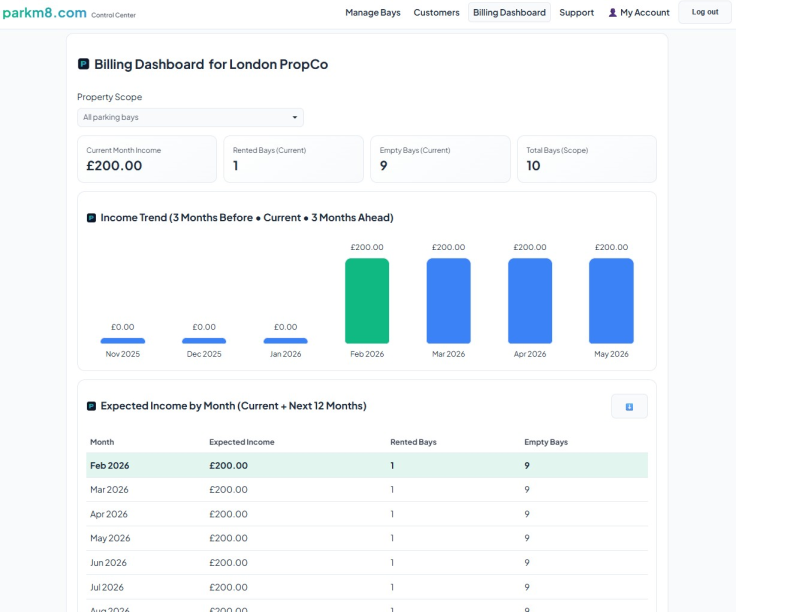
The Billing Dashboard provides KPI visibility for expected income and trend forecasts.
Open Billing Dashboard.
Use scope filters to view company-level or property-level performance.
Review current month and forward months to plan occupancy and revenue.
Open Subscription/Billing pages to change plan tier when needed.
If renewal auto-billing is enabled, the license renewal checkbox authorizes charge
processing on due date.
Refer to Terms and Conditions for no-refund
policy details on plan changes and paid periods.
Billing KPI dashboard and forecasts
Account, Security & Access
Access and security features are built into signup and account workflows.
Email verification and secure password reset flows for user access control.
Per-user preference storage for notification and onboarding controls.
Data encryption key support for protecting sensitive stored data.
Role-aware account pages for company profile, billing contacts, and preference
management.
Data Rights: SAR & Data Portability
ParkM8 provides a self-service export to support Subject Access Request (SAR) and Right to Data Portability workflows for your business data.
Subject Access Request (SAR): You can request a copy of all business data held for your company account.
Right to Data Portability: You can download your submitted and generated company-scoped data in a structured JSON file.
Abuse Prevention: For security and abuse control, exports are limited to one download per company per calendar month.
You can request one data export per month.
Data Export & Reporting API
ParkM8 provides secure REST export endpoints for integrating with external BI tools such as
Microsoft Power BI, Excel (Power Query), and Google Looker Studio.
All export data is scoped to your company — one company's API key cannot access another company's data.
Available Endpoints
All endpoints are relative to /api/company/{companyId}/export/. Replace {companyId} with your numeric company ID (shown in My Profile → Integrations).
Endpoint
Format
Description
occupancy.csv
CSV
Monthly occupancy per property (default: last 12 months)
occupancy.json
JSON / OData
Same data — supports $filter, $top, $skip
revenue.csv
CSV
Pro-rated monthly income per property (default: last 5 months)
revenue.json
JSON / OData
Revenue data — OData-compatible
customers.csv
CSV
Customer & rental summary (anonymised by default; add ?include_pii=1 for full PII)
customers.json
JSON / OData
Customer data — OData-compatible
Authentication
API keys are managed in My Profile → Integrations → Export & Reporting API. You can generate up to 5 keys per company and revoke them at any time. The plain token is shown once only at creation.
Export endpoints also accept your normal ParkM8 session (browser login), so you can paste a JSON endpoint URL directly into a browser tab to preview data.
Date Range & OData Query Parameters
Parameter
Applies to
Example
from_year_month
occupancy, revenue
?from_year_month=2024-01
to_year_month
occupancy, revenue
?to_year_month=2024-12
include_pii=1
customers
?include_pii=1
$top
JSON endpoints
?$top=100
$skip
JSON endpoints
?$skip=50
$filter
JSON endpoints
?$filter=property_id eq 3
Supported $filter operators: eq, ne, gt, lt, ge, le.
Connecting Power BI
Generate an API key in My Profile → Integrations → Export & Reporting API and copy it.
Open Power BI Desktop → Get Data → Web → Advanced.
Enter a .json endpoint URL (e.g. /api/company/42/export/occupancy.json).
Under HTTP request header parameters, add: Authorization = ApiKey pkm8_your_token_here.
Click OK. In the Power Query editor, expand the value list to load all rows.
In the Power Query editor, click the List result → Convert to Table to expand rows.
For CSV endpoints, use a .csv URL — Excel will import it directly.
How to Use the Enforcement Timeline
The Integrated Enforcement Module provides a chronological log
of every enforcement action taken across your properties. Each entry records who acted, on
which bay, at what time, and what outcome was reached — giving you a full audit trail for
disputes, compliance, and reporting.
Viewing the Timeline on the Dashboard
Open Manage Bays and select a property.
Scroll to the Enforcement Timeline card within the property section.
The timeline lists events in reverse-chronological order. Use the date-range filter to
narrow entries.
Click any row to expand the full event detail, including notes and any attached reference number.
Adding a Manual Log Entry
In the Enforcement Timeline card, click + Add Entry.
Select the bay, choose an Action Type (see below), enter the date/time,
and add any notes or an external reference number (e.g. PCN number).
Click Save Entry. The new entry appears at the top of the timeline immediately.
Action Type Descriptions
Action Type
Description
Warning Issued
A verbal or written warning was given to the vehicle owner.
PCN Issued
A Parking Charge Notice was affixed to or issued for the vehicle.
Vehicle Removed
The vehicle was towed or removed from the bay.
ANPR Triggered
An Automatic Number Plate Recognition event fired for this bay.
Appeal Received
The vehicle owner submitted an appeal against enforcement action.
Appeal Outcome
The appeal was resolved — record the outcome in the notes field.
Observation
A general note or observation logged by an enforcement officer.
Tip: Use the Observation type for any event that does not
fit a standard category — the notes field supports up to 1 000 characters.
Permit Lifecycle Management (Zatpark & GTechno)
Permit Lifecycle Tracking lets you connect ParkM8 to your
existing permit management platforms — Zatpark and
GTechno — so that permit events (issue, renewal, suspension, cancellation)
are reflected in your ParkM8 dashboard in real time via webhook callbacks.
Configuring Zatpark / GTechno Integrations
Go to My Profile → Enforcement Integrations.
Locate the Zatpark or GTechno card and click
Enable.
Enter your platform API endpoint URL and API key (supplied by your permit provider).
Click Save, then Test Connection to verify credentials.
Copy the Webhook URL shown in the card and register it in your Zatpark /
GTechno account settings as the callback destination.
Viewing and Managing Permit Events
Open Manage Bays and select the relevant property.
The Permit Events panel lists all incoming webhook events for that property's bays.
Each event row shows: permit reference, event type, bay, customer name, and timestamp.
Click a row to view the full webhook payload and any ParkM8-side actions taken.
Use Mark Reviewed to acknowledge an event and remove it from the unread count.
Understanding Webhook Callbacks
ParkM8 listens for POST requests at
/api/webhooks/permits/{companyId}. The payload must include at minimum:
Field
Type
Description
event_type
string
One of: issued, renewed, suspended, cancelled
permit_ref
string
Unique permit reference from the provider
bay_identifier
string
Bay number as configured in ParkM8
effective_date
ISO 8601
Date the event takes effect
Webhooks are verified using a shared secret (HMAC-SHA256 signature in the
X-Permit-Signature header). Rotate the secret from
My Profile → Enforcement Integrations at any time.
The Tax Advantage Tracker helps parking operators record and
categorise maintenance and operational costs that may be tax-deductible. The tracker
calculates yearly deductible totals and produces a summary you can hand to your accountant.
Important: ParkM8 does not provide tax advice. Always verify deductibility
with a qualified accountant before filing.
Accessing the Tax Tracker
Go to My Profile → Tax Advantage Tracker.
The section shows a year selector (defaults to the current tax year) and the full expense
list for that year.
Adding, Editing, and Deleting Expenses
Click + Add Expense to open the expense form.
Enter the date, description, amount, and select a category (see below).
Tick Deductible if you believe this expense qualifies for a tax deduction.
Click Save. The expense appears in the list and the yearly totals update instantly.
To edit, click ✏️ on any expense row. To delete, click 🗑️ and confirm.
Use the Year selector at the top of the Tax Tracker page to switch between tax years.
The Yearly Summary card shows: total spend, total deductible amount, and a
category breakdown chart.
Click Export Summary (CSV) to download a spreadsheet-ready version for your accountant.
Tenant Self-Service Portal
The Tenant & Resident Self-Service Portal gives your
customers a secure, no-login-required view of their bay details via a magic link. Tenants
can review their rental information and update their registered licence plates without
needing to contact you.
Generating and Sharing Portal Links
Open Customers and locate the customer record.
Click the 🔗 Portal Link button on the customer card.
A unique magic link is generated and copied to your clipboard. You can also click
Send via Email to dispatch it directly to the customer's registered email address.
Links expire after 7 days. Generate a new link at any time from the
same button — previous links are immediately invalidated when a new one is created.
What Tenants Can Do in the Portal
View bay details — property name, bay number, rental start and end dates, and monthly price.
Update licence plates — add, edit, or remove registered vehicle plates linked to their bay.
Download their rental confirmation — a PDF summary of their current rental period.
Tenants cannot modify rental dates, pricing, or any other administrative fields. All plate
updates are logged against the customer record with a timestamp and the portal session ID.
Link Expiry
Portal links are valid for 7 days from the time of generation. After expiry,
the tenant will see a friendly "link expired" message prompting them to contact you for a
new link. You can regenerate links as often as needed at no extra cost.
Sustainability & ESG Reporting
The Sustainability & ESG Reporting module lets you track
the environmental impact of your EV charging infrastructure. It records energy delivered,
estimates CO₂ savings against an equivalent petrol journey, and produces ESG-ready metrics
for corporate reporting or investor updates.
What ESG Reporting Covers
EV charging sessions — number of charge events per bay and property.
Energy delivered (kWh) — total kilowatt-hours delivered across all sessions.
CO₂ savings (kg) — estimated carbon saving vs. an equivalent petrol vehicle distance.
EV bay adoption % — percentage of your total bay inventory currently designated as EV bays.
Logging EV Charging Sessions
Go to Manage Bays, select a property, and open an EV-enabled bay.
In the bay detail panel, click + Log Charge Session.
Enter the session date, start and end time, and energy delivered in kWh. The vehicle
registration is optional but useful for cross-referencing enforcement records.
Click Save Session. The session is immediately reflected in ESG metrics.
Sessions can also be imported in bulk via CSV upload (template available
from the ESG dashboard) or pushed automatically if you have a smart charger integration configured.
Understanding the ESG Metrics
Metric
How it is calculated
Total kWh Delivered
Sum of all session kWh values for the selected period and property scope.
CO₂ Saved (kg)
kWh × 0.233 kg/kWh (UK grid average carbon factor — see methodology below).
Sessions Count
Total number of individual charge events logged.
EV Bay Adoption %
(EV bays ÷ total bays) × 100, calculated at property or portfolio level.
CO₂ Savings Methodology
ParkM8 uses the UK Government's published grid carbon intensity factor of
0.233 kg CO₂ per kWh (BEIS/DESNZ conversion factor for electricity,
updated annually). This represents the carbon savings attributed to delivering electricity
via the grid rather than burning petrol for an equivalent journey.
To update the carbon factor (e.g. when a new BEIS figure is published), go to
My Profile → ESG Settings and enter the revised kg/kWh value.
All historical metrics are recalculated automatically on save.
EV Bay Adoption Percentage
The EV Bay Adoption % metric shows how much of your portfolio is
EV-ready. It is calculated as:
EV Bay Adoption % = (Number of EV-flagged bays ÷ Total active bays) × 100
Use the property scope filter on the ESG dashboard to see adoption at portfolio, property,
or individual level. Export the ESG summary as PDF or CSV from the dashboard for inclusion
in annual sustainability or ESG reports.
Helpful Tips & Recent Features
Keep bay numbers consistent and unique per property so searches stay simple.
Use complete customer details (especially valid email) for better communication and
cleaner records.
When changing rental dates, watch for overlap warnings before saving.
Review expiring-rental filters weekly to avoid unplanned occupancy gaps.
Use CSV exports regularly for backups and off-platform reporting.
Dark Mode: Toggle dark mode for improved accessibility and comfort in
low-light environments.
Modern Date Pickers: All date fields now use native date pickers,
styled for both light and dark mode.
Quick Actions: New quick icons and card buttons for rapid entry,
editing, and exports.
Expiring Rentals: Enhanced filters and CSV export for renewal
management.
AI Chat Assistant: Use the chat icon for help with dashboard summaries,
rentals, and more.
Quick Icons & Card Buttons
The platform uses a set of quick icons and card-related buttons to streamline actions across
dashboards, customers, billing, and more. Here’s a reference for the most common icons and
their functions:
Icon/Button
Location
Purpose
📄
Tables, Cards
Download CSV template (bays, customers, billing)
⬇️
Tables, Cards
Export table data to CSV (customers, rentals, billing forecast, expiring
rentals)
Tip: Hover over any icon or button for a tooltip describing its action.
WARNING: How to close & cancel your ParkM8 Account
You can deactivate your current user login from My Profile via the
Danger Zone flow.
Go to My Profile.
Click Cancel Account in the Danger Zone card.
Continue to the confirmation page and type your company name exactly (case-sensitive).
Submit to deactivate your login and trigger automatic logout.
Clear Warning: This action deactivates your current login immediately.
You will lose access until an administrator reactivates your user account. It does not
automatically delete company operational records or billing history.
Submit Bug / Feature Request
Use this mini ticket form to submit bugs and feature requests directly to the ParkM8 admin queue.
Your requests are visible to ParkM8 admins for
review and prioritisation.